1
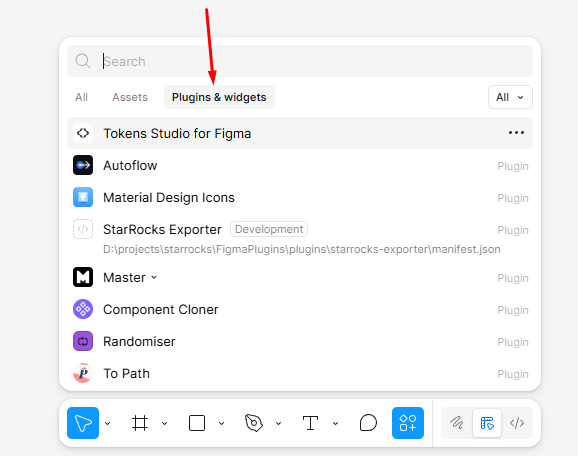
Open Plugins & widgets
In Figma, click Resources on the bottom toolbar and switch to the Plugins & widgets tab.
Deep component copy between files with variables, styles, images, and instance relationships preserved.
Admin
Enabled for intermediate plugin data.
COPY and PASTE data is stored on the CHTools server for 24 hours. Images are uploaded separately and referenced from clipboard payloads, so users can copy between computers and the service can be debugged from server-side logs.
Download the needed version, unzip it, and choose manifest.json from the extracted folder. These steps are needed while the plugin is not published in the official Figma or Pixso catalog.
Use this for the Figma ZIP build. After import, the plugin appears in Development and runs as a local plugin.
In Figma, click Resources on the bottom toolbar and switch to the Plugins & widgets tab.
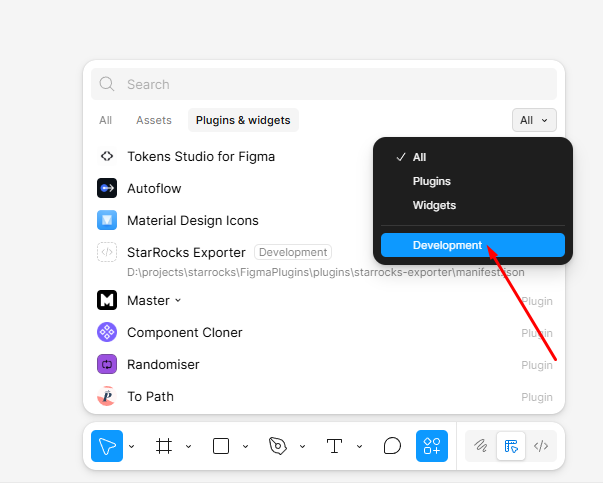
Choose Development in the right filter to see local plugins and development commands.
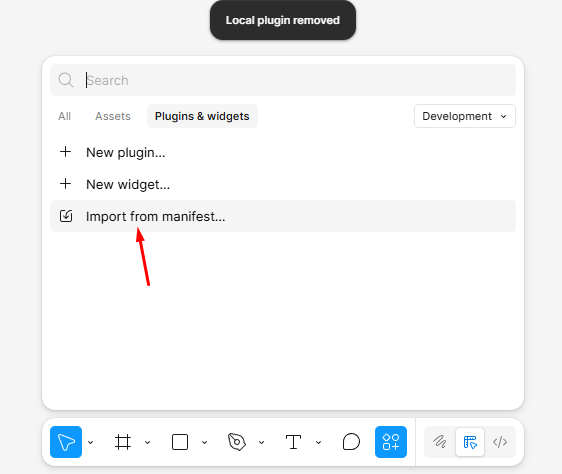
Click Import from manifest and choose manifest.json from the extracted Figma plugin folder.
Use this for the Pixso ZIP build. Pixso accepts manifest.json through the Create plugin dialog.
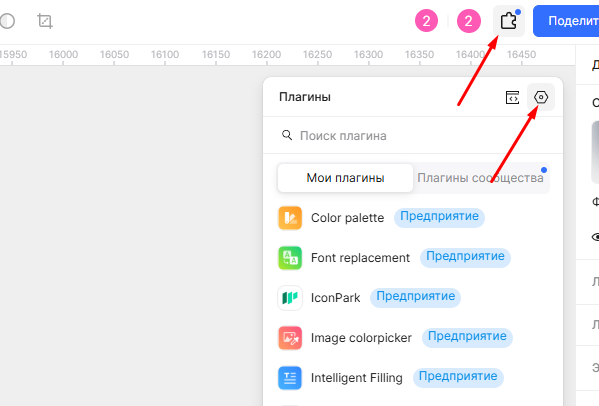
In Pixso, click Plugins on the top toolbar and open your plugin list.
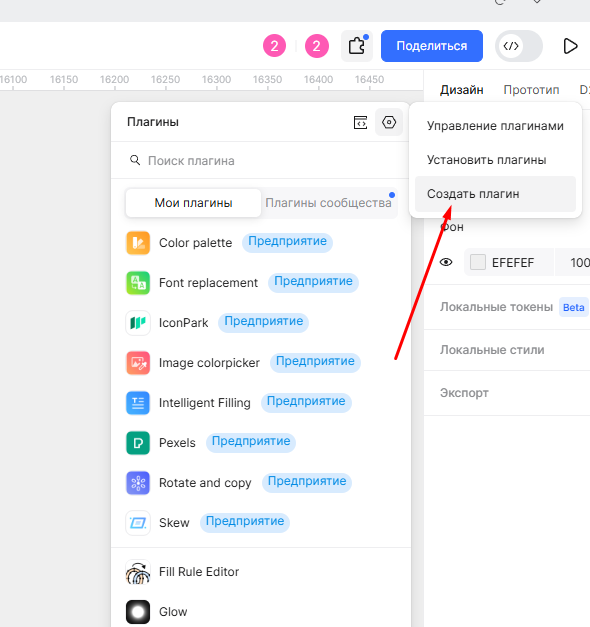
In the plugin management menu, choose Create plugin to add a local build.
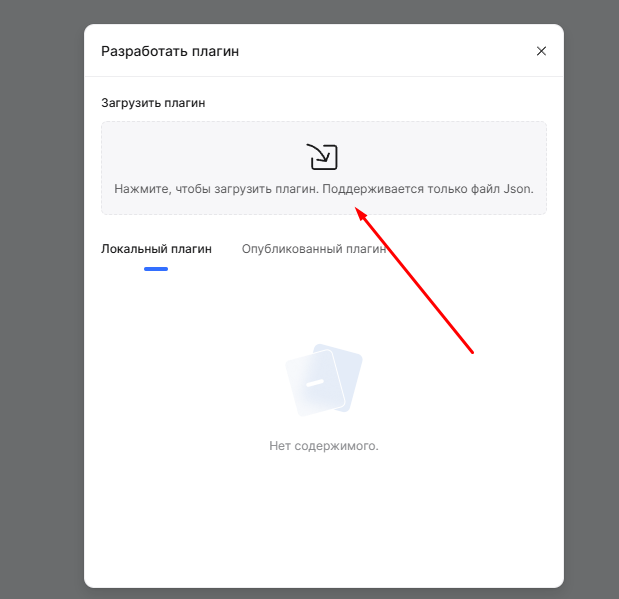
Click the upload area and choose manifest.json from the extracted Pixso plugin folder.
Adopts the shared StudioShell UI with unified Pixso buttons, Settings account linking, and the reliable queued command bridge preserved.
Adopts the shared StudioShell UI with unified Figma buttons, Settings account linking, and the existing server clipboard/image flow preserved.
Pixso port with Phase 3 instance refresh, deferred overrides, component reuse, and extended override support.
Smart Paste with variable and style mapping, alias resolution, conflict actions, and richer image/debug handling.
No comments yet.