1
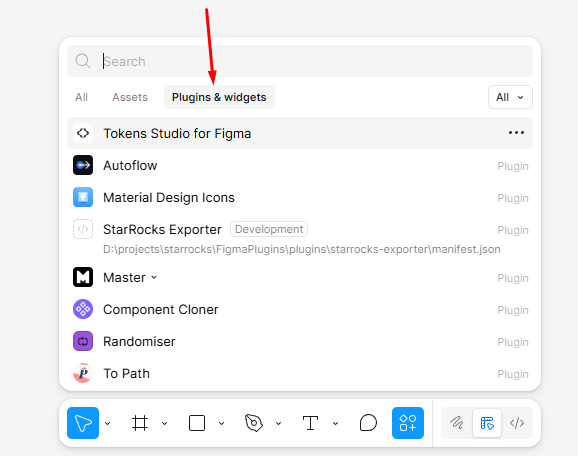
Open Plugins & widgets
In Figma, click Resources on the bottom toolbar and switch to the Plugins & widgets tab.
Free utility for applying isometric and skew transform presets with intensity, optional shadow duplicates, and reset support.
Admin
Not used by this plugin.
Iso Transform runs locally inside the editor and does not store document data on the CHTools server. The shared plugin shell can send optional user feedback to CHTools.
Download the needed version, unzip it, and choose manifest.json from the extracted folder. These steps are needed while the plugin is not published in the official Figma or Pixso catalog.
Use this for the Figma ZIP build. After import, the plugin appears in Development and runs as a local plugin.
In Figma, click Resources on the bottom toolbar and switch to the Plugins & widgets tab.
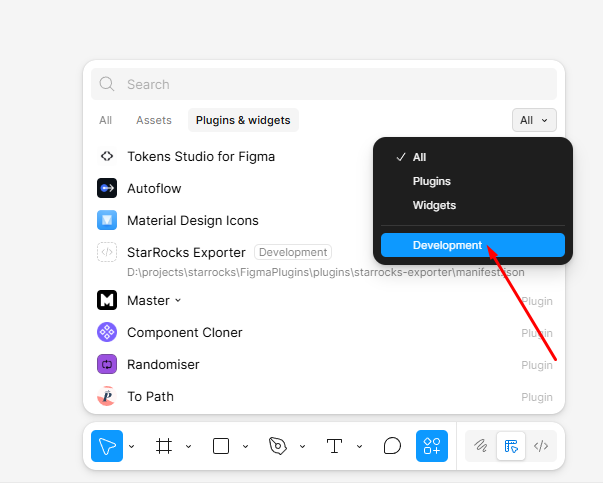
Choose Development in the right filter to see local plugins and development commands.
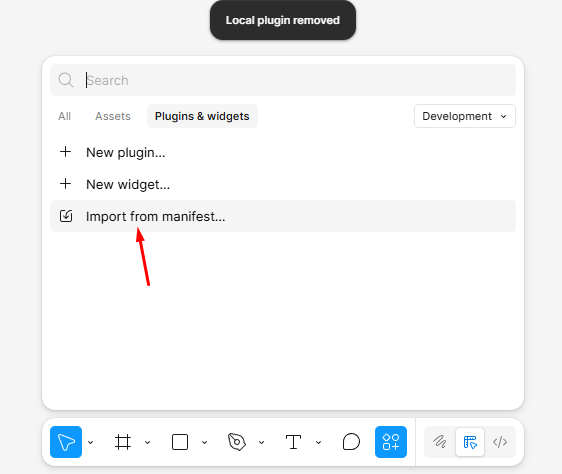
Click Import from manifest and choose manifest.json from the extracted Figma plugin folder.
Use this for the Pixso ZIP build. Pixso accepts manifest.json through the Create plugin dialog.
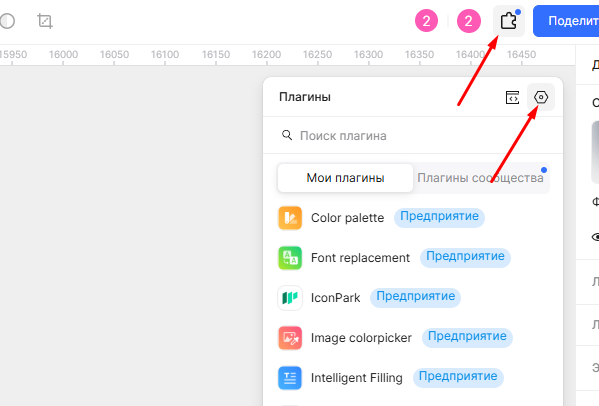
In Pixso, click Plugins on the top toolbar and open your plugin list.
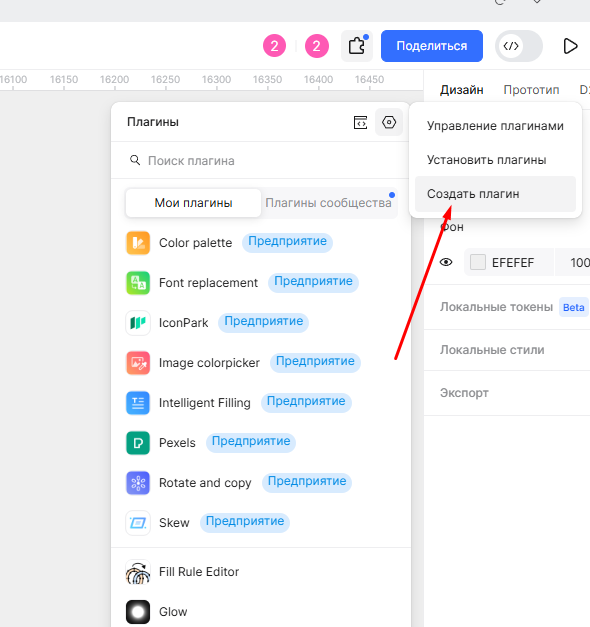
In the plugin management menu, choose Create plugin to add a local build.
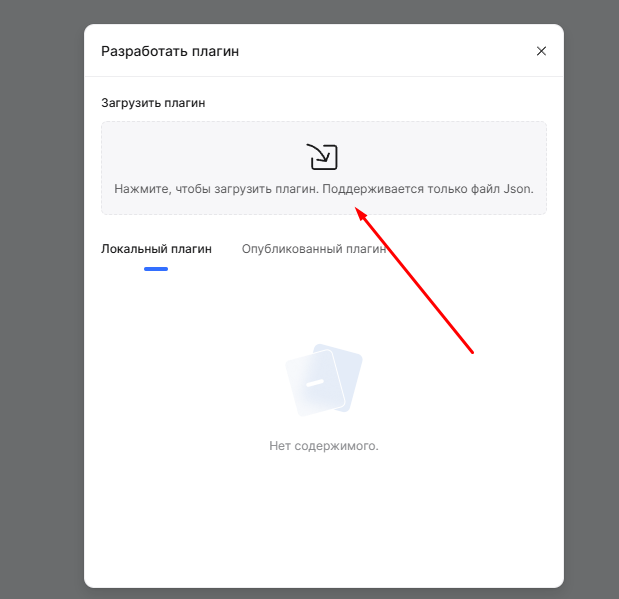
Click the upload area and choose manifest.json from the extracted Pixso plugin folder.
Fix Pixso button delivery with the polling command bridge for refresh, reset, and apply transform actions.
Initial free utility for applying isometric and skew transform presets to selected layers with intensity controls, optional shadow duplicates, and reset-safe plugin data.
Initial Pixso utility for applying isometric and skew transform presets to selected layers with intensity controls, optional shadow duplicates, reset support, and CHTools feedback.
No comments yet.